Download the completed MP4 and keep an original copy. Burning Bridges AI Video delivers native landscape 768P, not an automatic 9:16 edit. In your own editor, compare a vertical crop with a vertical canvas that keeps the full landscape frame. Review faces, hands, captions, music permissions and the exported file before posting.
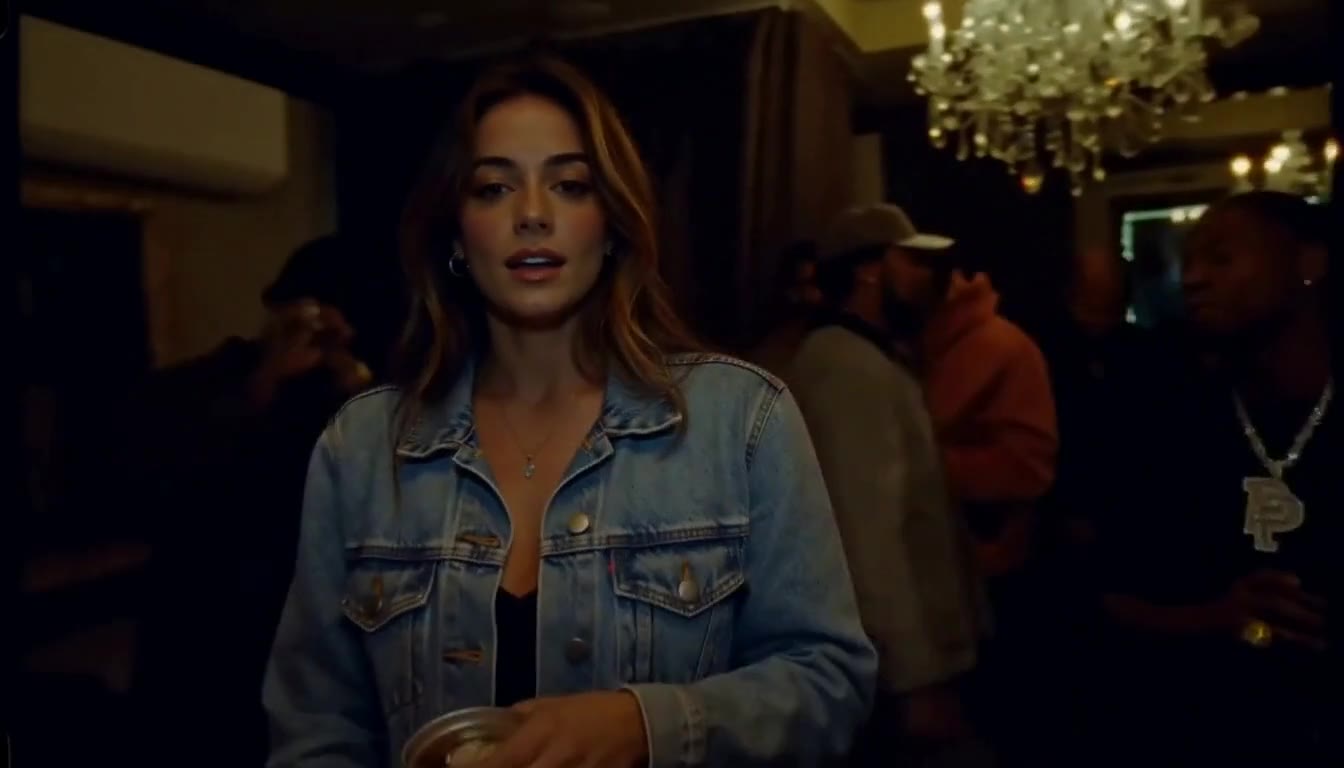
Start with the completed native landscape MP4
The studio's current $5.99 one-time offer requests a 14-second native 768P generation. It does not supply an automatic TikTok or Reels 9:16 conversion. The actual solo-lead demonstration is 1344 × 768 and runs 14.375 seconds because of provider padding, so treat the delivered file as the starting material for your social edit.
Watch it with sound and download the MP4 before opening an editor. Keep this original file. Editing a saved copy gives you a reference if a crop removes a gesture, a caption hides a face or an export changes the audio. A local draft in My studio is not a backup of the completed video.
Compare a vertical crop with a full-frame layout
A 9:16 crop can make the lead larger on a phone screen, but it discards much of a landscape image. Scrub through the entire clip while adjusting the frame. The performer may move, raise a hand or shift position; a crop that works in the first frame may cut off the action later.
An alternative is a vertical canvas containing the full landscape video, with simple space above or below for a short caption. This preserves background friends, the room and more of the performance. For a crew video, compare both approaches before deciding. A narrower crop cannot restore a friend who was already small or unclear in the generated result.
- Crop option: emphasize the lead and check every moving gesture.
- Full-frame option: preserve the scene and supporting people.
- In either layout: preview at phone size and play the whole sequence.
Add a short caption that fits the actual clip
Use a specific caption that explains your moment without overstating the result. A birthday edit could say “A new entrance for the birthday crew.” A solo version could say “My photo, one party performance.” If the result shows only the lead clearly, avoid presenting it as a flawless transformation of every friend.
Keep text away from faces, hands and the central action. Check the destination's posting preview because interface controls may cover part of your layout. Give text enough contrast and time to read. You do not need several competing stickers or captions to explain a short clip; one clear idea can carry it.
Check soundtrack and sharing permission
The downloaded video includes the original or AI-generated soundtrack selected for the order. Listen after importing and after exporting to confirm that your editor has not muted it or accidentally added overlapping audio. If you add another track, review its fit with the visuals and keep the unchanged original copy.
Check the current platform's music rules and your permission to publish the footage, soundtrack and people pictured. The studio's music labels do not promise clearance for all external uses. Friends should understand that a social post can be copied or redistributed. The bitio share page is also optional; downloading does not require making it public.
Review the exported edit before posting
Open the export outside your editor and watch from start to finish. Look for clipped heads, cropped hands, text covering a friend, unexpected silent sections and an awkward final frame. Compare it with the original MP4 when you are unsure. Avoid calling a larger exported frame a higher native generation resolution.
Use the platform's final preview to check your caption and layout again, and describe the clip honestly as AI-generated when appropriate or required by its current rules. This is a practical editing workflow, not evidence about an algorithm or a promise of views. The published example is a fictional-adult studio demonstration; audience response to your own video will vary.
A FEW MORE DETAILS
Common questions.
Does Burning Bridges AI Video automatically export 9:16?
No. The current output is native landscape 768P. Download the MP4 and make a vertical crop or full-frame vertical-canvas edit in your chosen editor.
How can I keep my background friends visible in a vertical post?
Compare a crop with a vertical canvas that includes the full landscape frame. Scrub through all movement; a tight crop may remove supporting people at either side.
Will a Burning Bridges clip go viral on TikTok or Reels?
No audience result is promised. Make a clear, accurate edit that fits your occasion, check publishing permissions and judge the response to the actual post.
READY WHEN YOU ARE.
Make your entrance.
Choose your photos and music. Review the price before creating.
Need help with an existing order? Contact support with your order reference.